
 American
( English )
American
( English ) Singapore ( English )
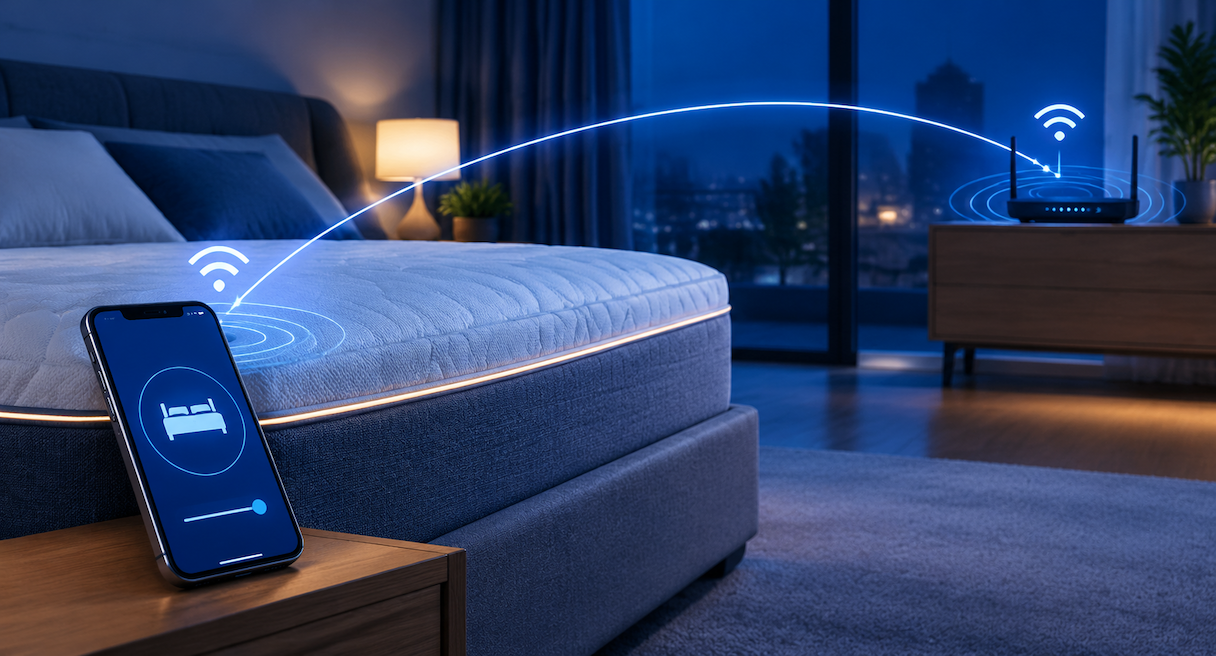
The search that brings most new owners here usually starts on the product side, something like best sleep tracking apps ranked and compared, and lands on a narrower question the first night: how does the mattress actually reach the app? DeRUCCI's connectivity documentation gives a plain answer that starts earlier than the phone. Most setup failures are stopped before pairing begins, on conditions that take minutes to check, and the Wi-Fi band leads the list as the single most common obstacle.
Before You Open the App: The Four-Check Preflight
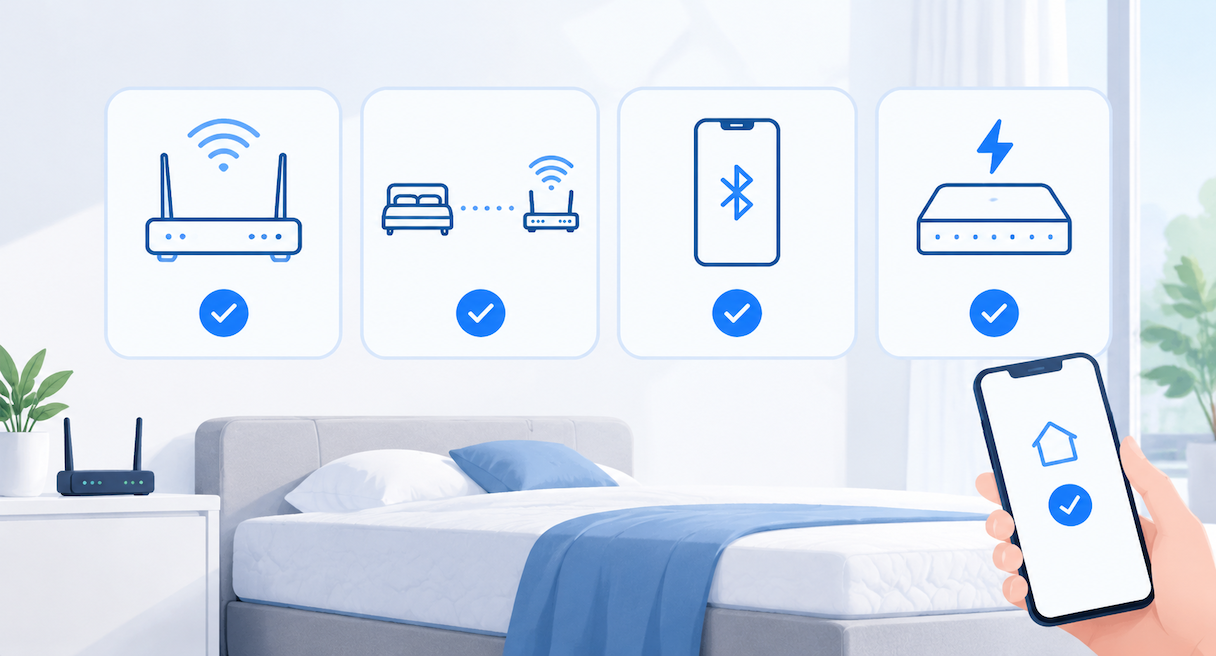
Most pairing trouble starts before the app is even opened. DeRUCCI's connectivity documentation asks for four confirmations first, covering the Wi-Fi band, the physical distance, the phone's radio switch, and the bed's power state, and it treats those checks as the place to begin. Each one takes under a minute to verify.
The setup documentation opens with an instruction worth quoting as it stands: "Before you touch the app, confirm four things on the network and hardware side." The support record behind that line concentrates failures at this layer, ahead of anything the app does, so the checklist earns its place at the top.
The four items, each a yes-or-no question:
- The router's 2.4 GHz band is on air. The mattress module speaks 2.4 GHz Wi-Fi, so the band it listens for has to be broadcasting. Plenty of home routers ship with both bands active, and the check is confirming this one stayed that way.
- The router sits close enough. The documented reach runs to roughly 10 meters from router to bed, and about 5 meters when a wall stands between them. The distance section below unpacks why walls cost more than meters.
- Bluetooth is on at the phone. The app scans for the mattress over Bluetooth, so the toggle in the phone's settings needs to be switched on.
- The mattress has power. The adapter should be connected with its indicator lit; a powered bed is one the scan can find.
A sentence of context makes the first item easier to act on. Home Wi-Fi commonly ships in two flavors, 2.4 GHz and 5 GHz, and as a general property of radio, the lower band travels farther through a home at gentler speeds while the higher band is faster over shorter distances. Smart-home equipment tends to favor the lower band for that reach, which is why the mattress listens there.
A common first-time worry is that the bed would need Wi-Fi and an app before it worked at all. First-time setup does ask for both, which is what makes a four-item checklist worth the few minutes it costs. For readers newer to the category itself, what is an AI mattress covers what the sensing and adjusting layers actually do.
(This image is AI-generated for reference only, not an actual product photo.)
Why 2.4 GHz Is the Band That Matters (and What Dual-Band Routers Do)
The mattress module is built for 2.4 GHz Wi-Fi, without 5 GHz support, and DeRUCCI's support record names the band as the single most common setup obstacle. Routers broadcasting 5 GHz alone cannot complete pairing; dual-band routers pair normally while their 2.4 GHz band stays active.
The specification states that the module in the T11 series is constructed for 2.4 GHz Wi-Fi. On a router that broadcasts 5 GHz alone, the documentation's wording is direct: the mattress "will not pair, period."
Dual-band routers sit on the workable side of that line. A unit broadcasting 2.4 GHz alongside 5 GHz, sometimes labeled a combined or concurrent band in its settings, pairs without friction, and the mattress locks onto the 2.4 GHz portion of the signal by itself.
| Router setup | Pairing result |
|---|---|
| Dual-band, 2.4 GHz band active | Pairs; the mattress uses the 2.4 GHz portion of the signal |
| 5 GHz alone, no 2.4 GHz broadcast | Will not pair; switch a 2.4 GHz band on first |
Where that setting lives varies from maker to maker, in both placement and naming. As general network advice, band options belong to the router's own administration page, and the maker's support materials spell out the exact route for a given model.
How Far Can the Router Be? Distance, Walls, and the Repeater Fix
Distance has a number attached. DeRUCCI specifies roughly 10 meters between router and mattress, dropping to about 5 meters when a wall stands between them, because 2.4 GHz signal weakens quickly through brick and concrete. Where the signal still runs thin, a Wi-Fi repeater placed at the midpoint between router and bedroom is the documented fix.
The specification puts the reach at roughly 10 meters of open path between router and bed. A wall in the path changes the arithmetic, bringing the working distance down to about 5 meters, because 2.4 GHz signal weakens quickly passing through brick and concrete, the documentation's stated reason.
The plain-language reading is that walls cost more than meters do. Radio crosses open air at its full documented distance, and each wall takes a share of the signal out of the budget; a router with a clear path to the bedroom does more for the connection than a nearer one sitting behind masonry.
Where the signal genuinely runs thin at that range, the documented fix is a Wi-Fi repeater at the midpoint between the router and the bedroom, extending reach without relocating the router. Moving house or setting up in a larger home makes placement worth planning before the bed arrives, since a chosen router position beats a retrofitted one.
Pairing Step by Step in the DeRUCCI AI App
Four numbered moves make up the official pairing sequence in the DeRUCCI AI App. Install the app by searching "DeRUCCI AI", tap Add Device to begin, bring the mattress to its pairing state with a five-second power cycle repeated three times, then scan over Bluetooth, connect, and confirm the Bluetooth ID when more than one mattress appears.
With the preflight clear, the pairing itself runs inside the DeRUCCI AI App as a numbered sequence for the T11 series, in the documentation's order.
1. Install the app. Search "DeRUCCI AI" in your phone's app store. On iOS, the app comes from the App Store; on Android, it comes through Google Play.
2. Start the pairing. Open the app and tap "Add Device". Give the mattress five seconds of power, cut the power, and run that on-off cycle three times. The repetition moves the bed's control unit into the state where pairing can find it.
3. Scan and connect. Switch on the phone's Bluetooth and tap "Next". The app scans for connectable devices nearby; select your mattress from the list and tap "Connect".
4. Confirm the identity. Where the scan turns up more than one mattress, check that the Bluetooth ID shown in the app matches your own bed; the naming follows a pattern such as AI mattress MOS1-002.
The menu names above are the ones the documentation carries. Once pairing completes, what the app builds over the following nights, the readings and the reports they feed, is the ground covered by how AI smart mattresses track sleep health.
Still Not Connecting? Work Through the Three Failure Types
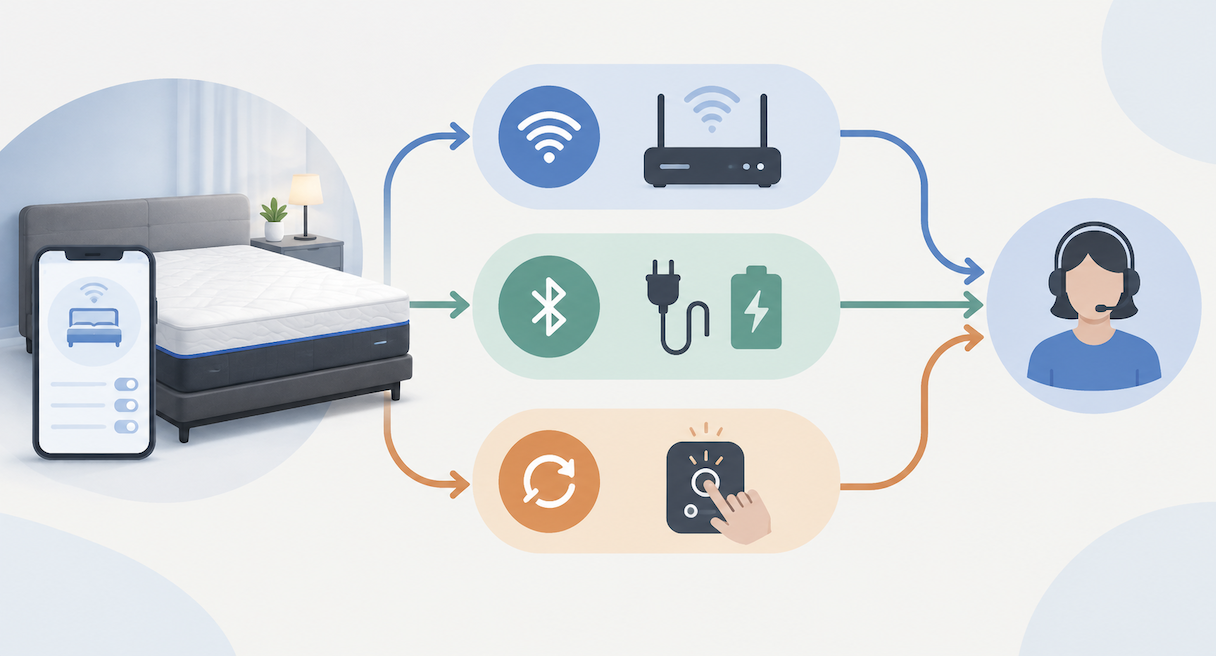
Nearly every failed setup traces back to one of three causes in the official record: the network running on the wrong band, a Bluetooth or power switch that was never actually on, or a mattress waiting for its reset routine. The band leads the list as the single most frequent cause, and each branch closes with a specific recheck.
When the sequence stalls anyway, the record sorts the cause into three buckets, and working them in order saves time because the first is the most frequent.
- The network sits on the wrong band. The single most common failure, per the record. Confirm the 2.4 GHz broadcast using the table above, then run the pairing again.
- Bluetooth or power was never actually on. A switch can look enabled at a glance and still be off. The two recheck points are the phone's Bluetooth screen and the adapter indicator at the bed, both drawn from the preflight list.
- The mattress needs its reset. The reset routine is the power cycle from the pairing steps, five seconds on, power cut, three repetitions, run one more time. That cycle is the reset method the documentation carries, and pairing afterward follows the same steps as before.
With all three branches clear and the connection still refusing, the path is short. Contact the dealer the bed came from, or write to the product team at productdepartment@derucci.com, and bring the checklist results along; three yes-or-no answers speed the conversation.
When the home network itself is out, a 2.4 GHz phone hotspot serves as the documented backup, keeping the mattress usable while the reports wait for a working connection. What a bed like this keeps doing once the network is gone gets its own article later in this series.
And where the connection turns out healthy but the adjustments feel subtle, the mechanics of how adaptive firmness technology works explain what the bed is doing under the surface.
(This image is AI-generated for reference only, not an actual product photo.)
Frequently Asked Questions
---
Pairing lands on the first or second try when the band is set, the distance holds, and the power cycle runs its three turns. Where the decision behind the bed is still open, the wider ground from sleep problems to mattress choices continues in the series hub; to see the current range in person, find a store and check global showroom addresses.